The message is about pixels, not your design. The file has too few for the size you chose.
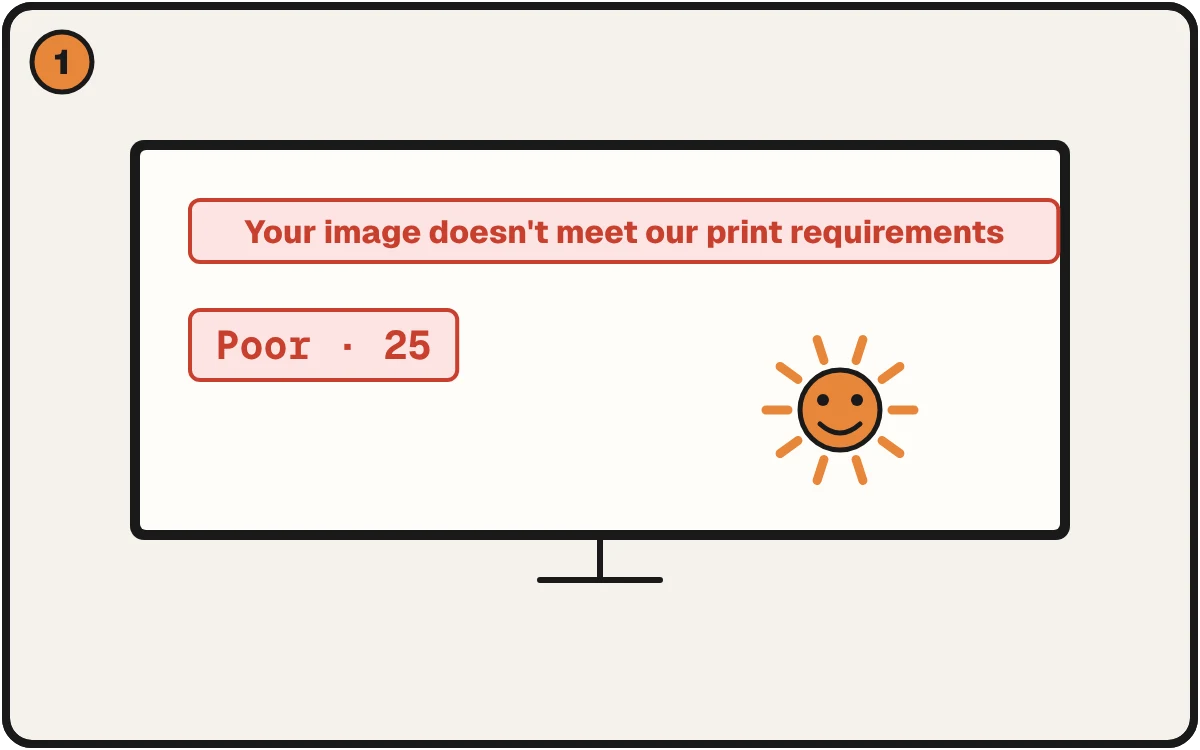
The warning is about pixels, not your design.
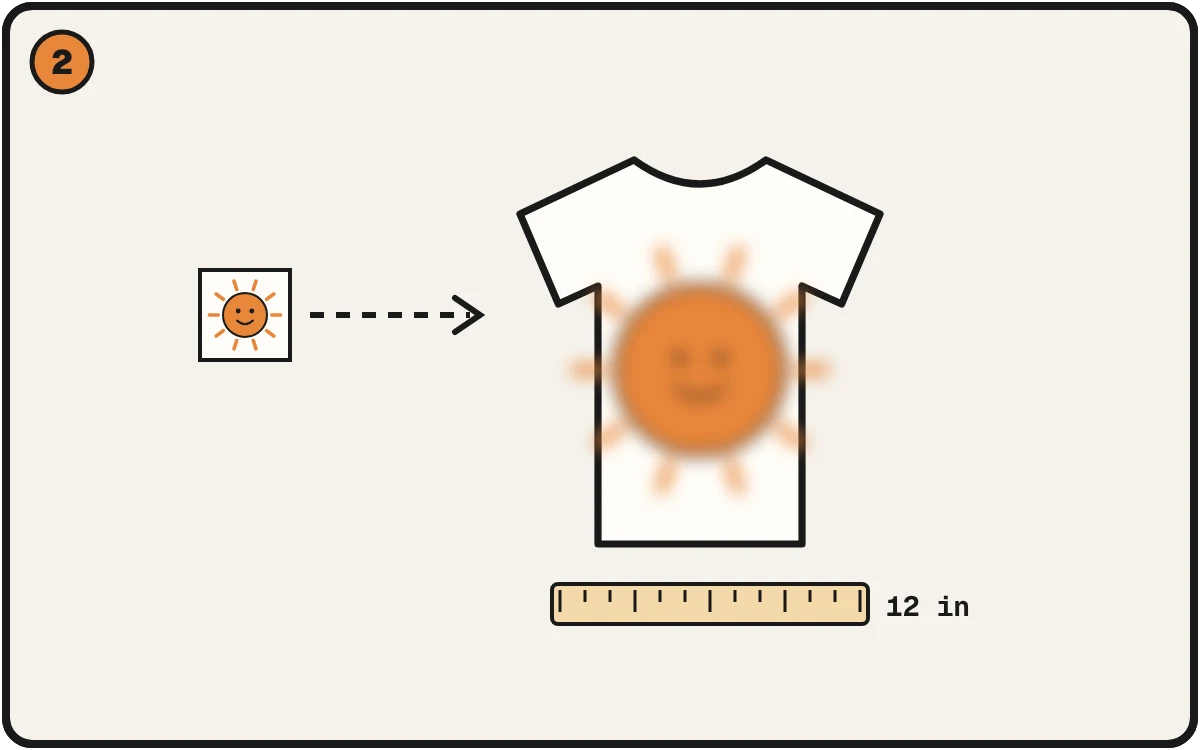
A small picture spread over a big shirt has too few pixels per inch.
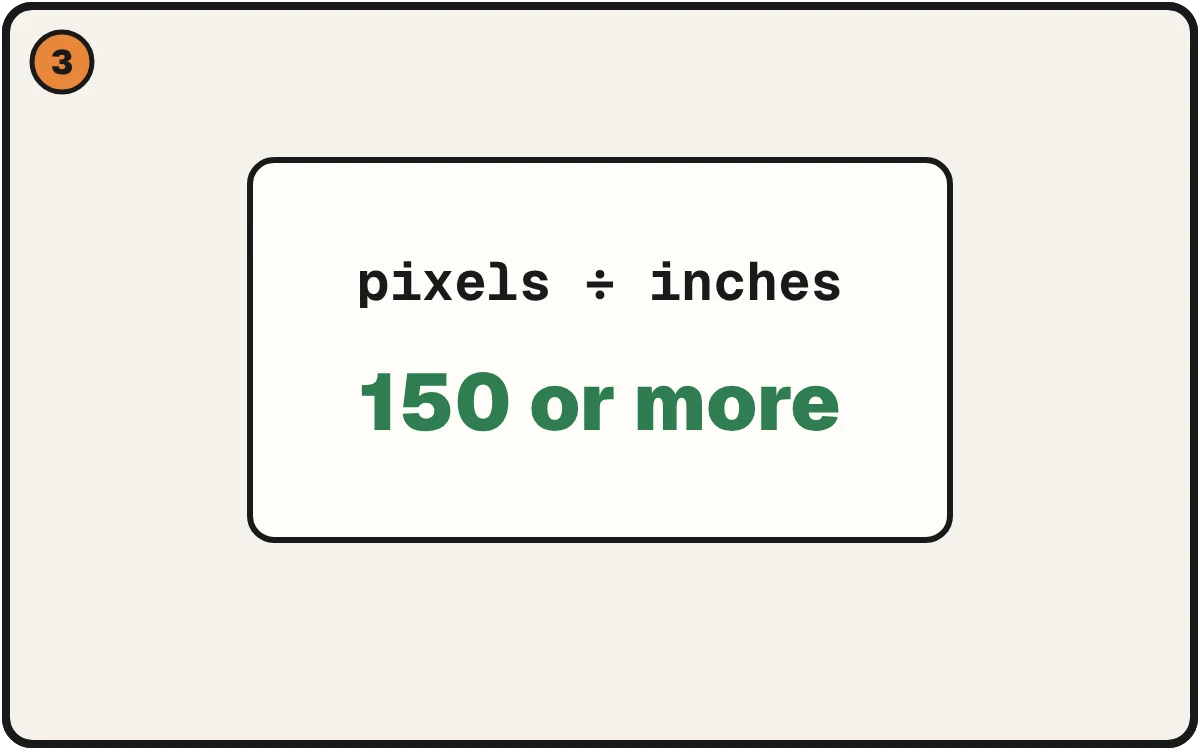
Do one division before you upload. Printful asks for at least 150.
What we saw
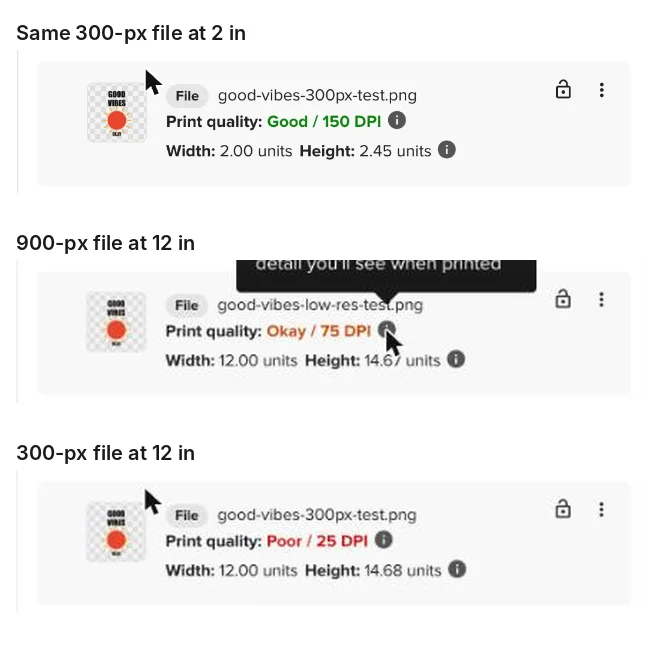
In Printful's Design Maker, a small file at 12 inches wide showed Poor and this message: "Your image doesn't meet our print requirements." Save was greyed out.
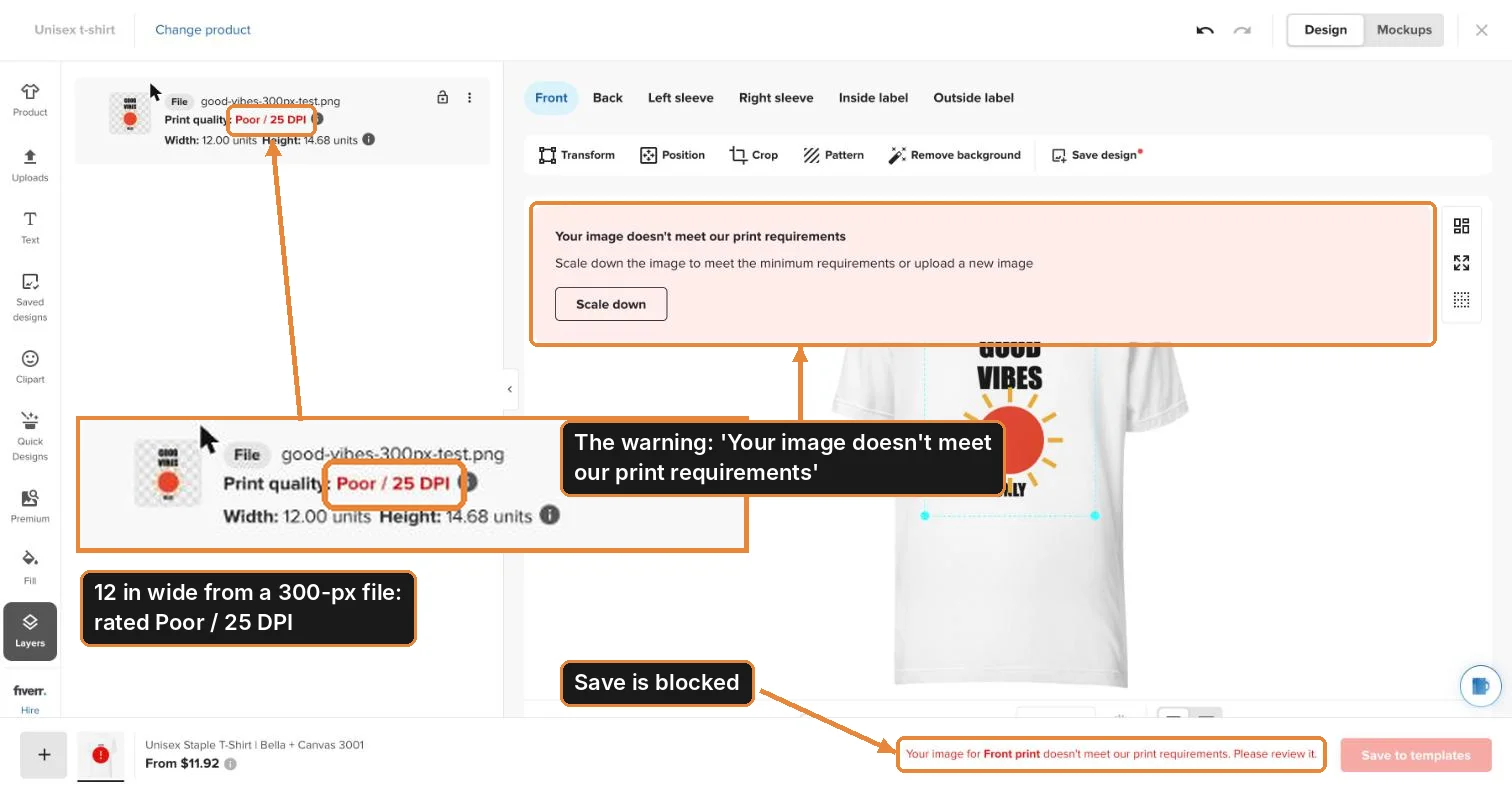
Printful rates the print Good, Okay or Poor and shows a number beside it. In our test on November 6, 2026, a 300-pixel file read Good at 2 inches wide (150) and Poor at 12 inches (25).
Why it happens
The number is pixels per inch. Printful's DTG file guide asks for at least 150 at print size, and its help center calls 150 to 300 ideal (checked November 2026). On a 15 × 18 inch front print, that's 2,250 × 2,700 pixels. At 300 it's 4,500 × 5,400.
Other providers publish their own (as of November 2026): Spring recommends 3,720 × 4,950 and blocks a file rated "Poor." Gooten lists 4,200 × 4,800 for most tees. Printify says it varies by product, so read it in the Product Creator.
Watch out: Scale down clears the message without adding pixels. See what happens to the print.
How to catch it before you upload
Do one division: pixels across ÷ inches you'll print. Printful's floor is 150. For a sharp print, aim for 250 to 300.
Check a File Free. Choose your print size and it tells you if the file holds. Too small? Upscale 4x makes it sharp at print size, no Photoshop.
More checks before you send a file: the DTF file checklist.